
Homepage
The most important actions and areas are offered to you centrally on the homepage of the Portal.
-
Navigation bar: You can use the navigation bar on the left to navigate through the various contents of the Portal. By clicking on
 in the header of the navigation bar, you can expand and collapse it, for example, to save space. To make the navigation bar wider, you can also drag it larger when it is expanded.
 -
Menu bar: In the menu bar at the top, you will find main actions that allow you to access the search, your notifications, your favorites, your history, help, your user settings and other Aeneis apps at any time or switch to another version.
-
Quickstarts: You can use the quickstart tiles at the top to create the most important content and start modeling directly or navigate to the most important content with a single click.
Note: You will only see a specific quickstart if it is currently relevant for you and you have the necessary permission. Detailed information on this can be found under Requirements for viewing a quickstart.
Note: You can show and hide the quickstarts on the homepage as you wish via your user settings.
-
Favorites: You can display your favorites directly on the homepage. Use the context menu on the card to find the most important actions for your favorite. You can also find your favorites at any time via the menu bar. You can show and hide the favorites on the homepage as you wish via your user settings.
-
Last visited objects: On the homepage, you can also display the objects that you last opened in the Portal. Use the context menu on the card to find the most important actions for the object. You can show and hide the last visited objects on the homepage as you wish via your user settings.
-
Last edited objects: In this area of the homepage, the last 30 objects that you have edited are displayed as cards. Use the context menu on the card to find the most important actions for the object.
Note: This area is limited to model objects that can be edited in the Portal.
To see more objects, go to the last card in this area and click to call up your user's audit trail.

You can then restrict or extend the time period in the dialog.
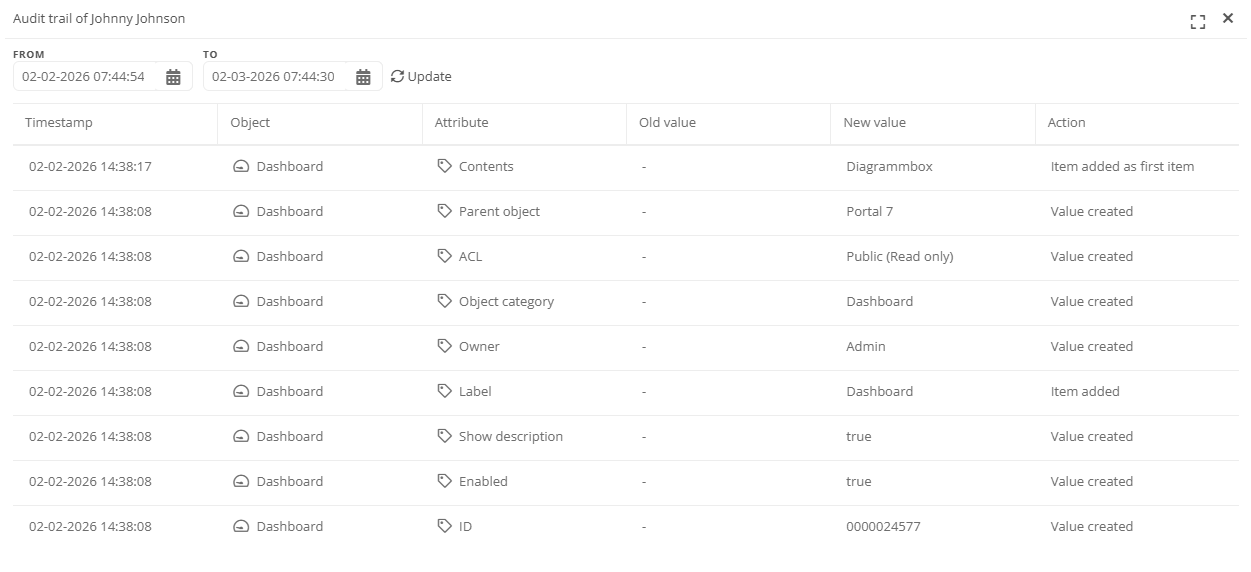
See also: Further details on the audit trail can be found under Audit trail.
You can show and hide the last edited objects on the homepage as you wish via your User settings.
Note: If you have edited objects of the following types, they will not be listed on the homepage:
-
Category, category attribute and schema attribute
-
Directory objects (user, group)
-
Portal components (table, column, view...)
-
Database
If you have edited objects of the following types, the homepage lists the parent object:
-
Version
-
Event
-
Diagram
-
Task
-
-
Diagrams: In the bottom section, process maps, column charts or other diagrams of your company are displayed. Click on the diagram elements to navigate directly to the object.
 Related Topics